Staff and working hours
Add the people customers book, with picture, working hours, time off, services and own prices.
Under Staff you manage everyone who can be booked. Each staff member has their own working hours, time off and services; prices and durations can differ per person.
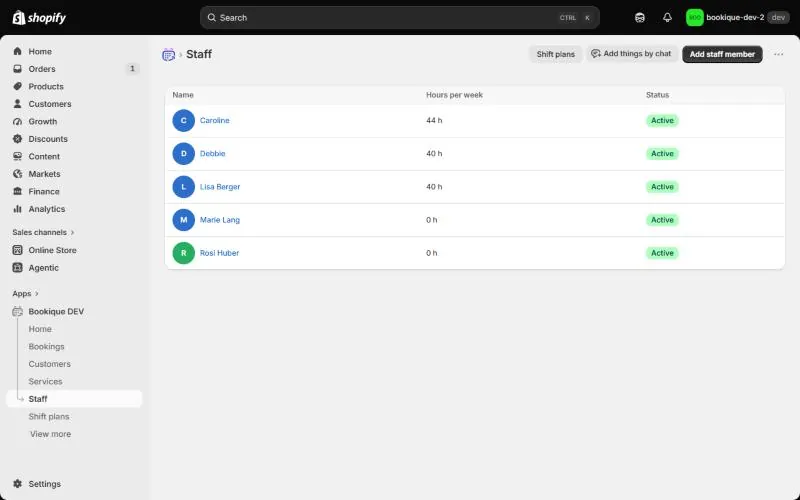
Add a staff member
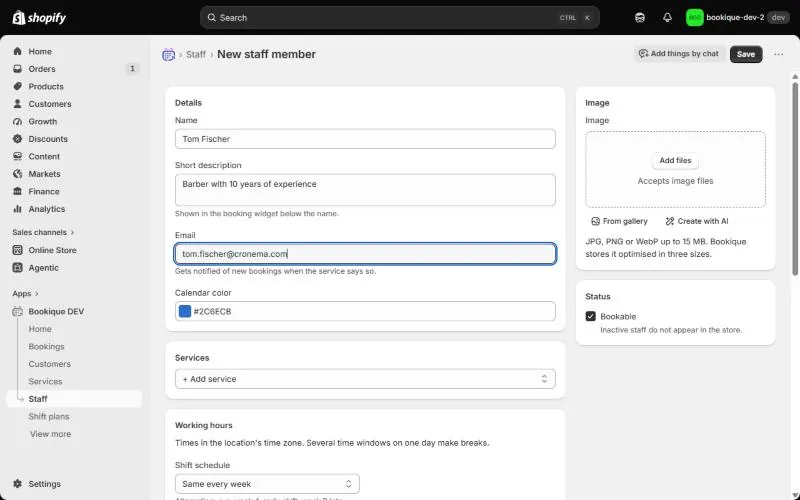
- 1Click Add staff member.
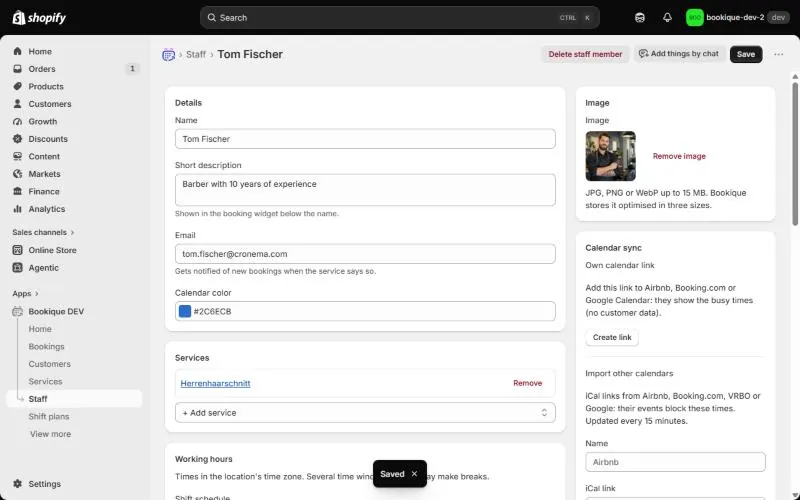
- 2Enter the Name and a Short description – it appears in the widget below the name.
- 3Optional: an Email address. The person is then notified of new bookings if the service says so.
- 4Pick a Calendar color for the admin calendar.
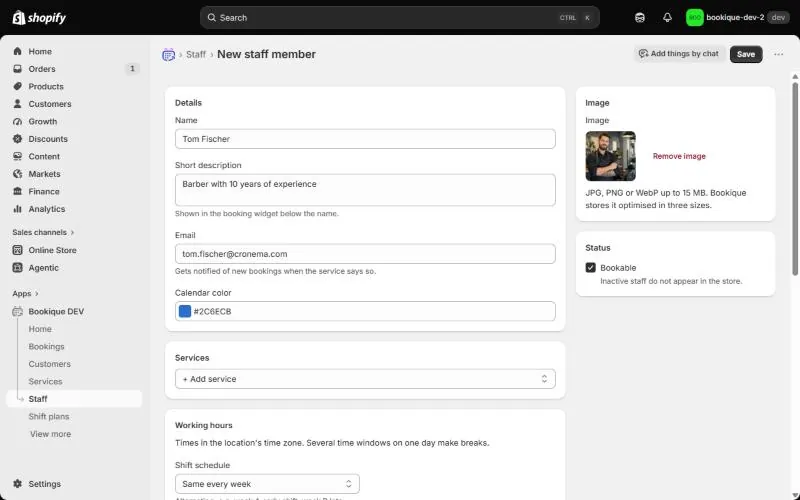
- 5Upload a picture or create one with AI (see below). Bookique stores pictures optimised in three sizes.
- 6Leave Bookable on. Inactive staff do not appear in the store.
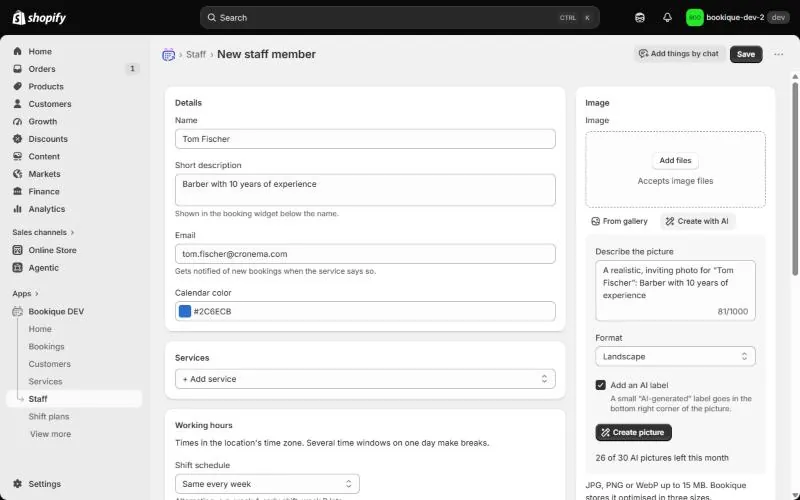
Picture with AI
Click Create with AI, describe the picture in a few words, choose the format (landscape, square or portrait) and click Create picture. It takes up to a minute. A small “AI-generated” label can be added in the corner.
Working hours and time off
Enter the hours per weekday in the location's time zone. Several time windows on one day create breaks – for example 9:00–12:00 and 13:00–18:00. Days without times are off. Under Time off you add vacation, sick days or single breaks; no bookings are possible then.
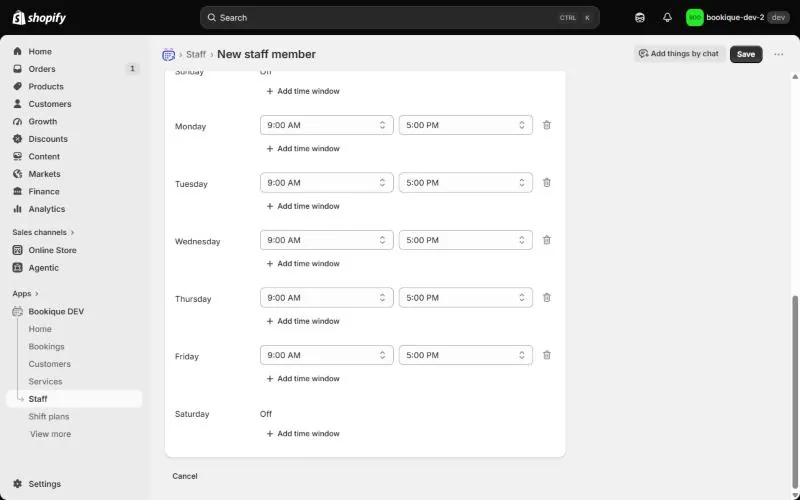
With Shift schedule you can let the hours alternate, for example week A early shift and week B late shift. For whole teams use Shift plans (see the guide Shift plans).
Services of the staff member
Under Services you choose what the person offers. You can also do this on the service page, where you can enter an Own price or Own duration per person.
Screenshots show the app in English.
Need help?
Write to support@cronema.com – we answer in English and German.