Services
Create bookable services with duration, buffers, lead time, payment, reminders and staff.
A service is what customers book, for example “Haircut 45 min”. Open Services and click Add service.
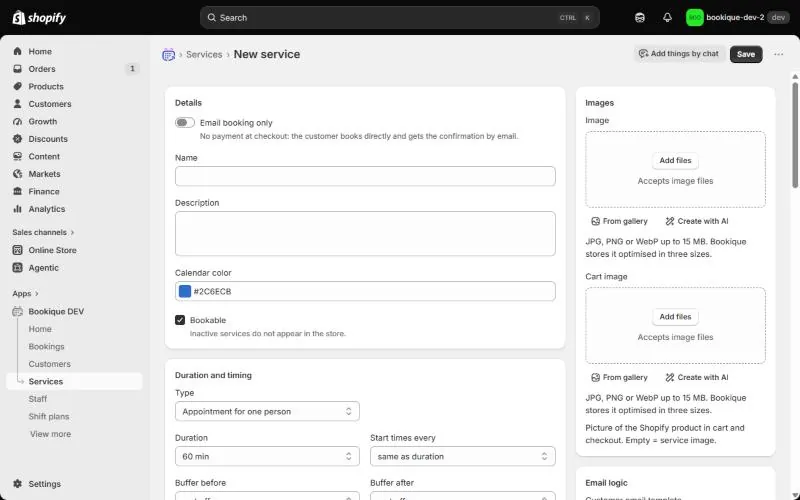
Details and type
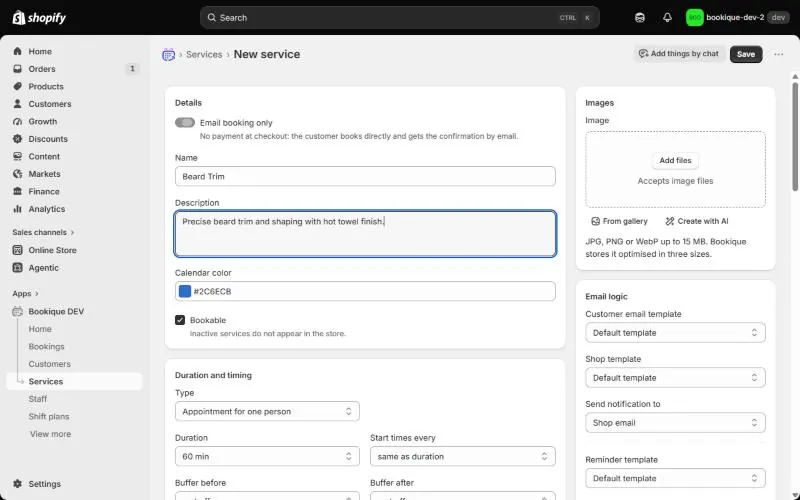
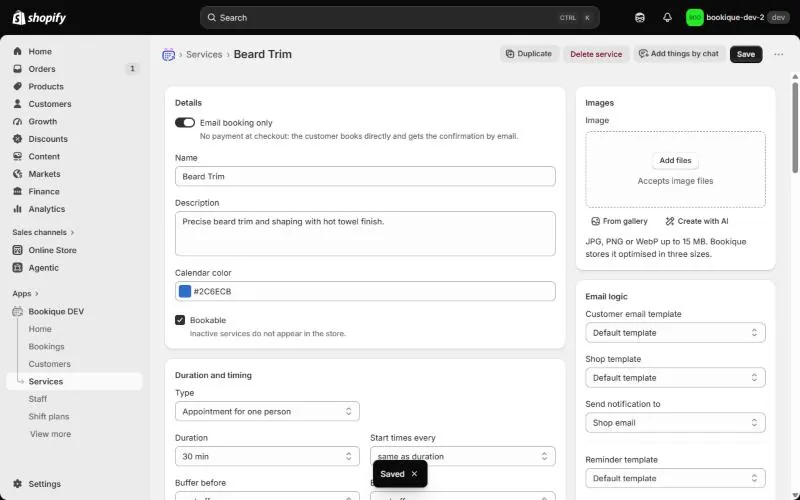
Enter Name, Description and Calendar color and add a picture. Under Type choose what is booked:
- Appointment for one person – classic 1:1 appointments with staff.
- Class or group with several places – courses, tours, tee times (see Classes and group slots).
- Rental by the hour and Rental by the day – items, rooms or holiday flats (see Rentals).
Duration and timing
- Duration of the appointment and Start times every (for example every 15 minutes, or the same as the duration).
- Buffer before and Buffer after also block the staff member, for example for preparation or cleanup.
- Bookable at the earliest – from right away up to one week before.
- At most this far ahead (days) – the booking horizon, for example 90 days.
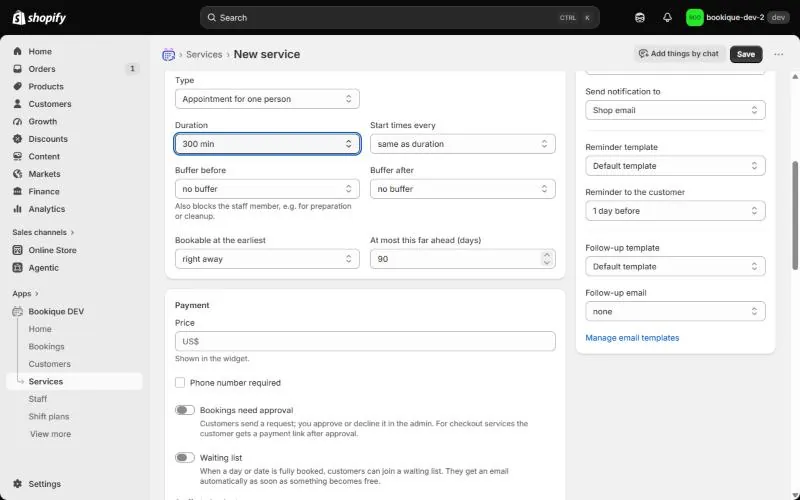
Payment
Under How do customers pay? choose In the Shopify checkout – Bookique then creates a Shopify product for the service – or No payment: customers book with a form and pay outside Shopify. Email booking only books directly without checkout and sends the confirmation by email. Change prices in Bookique, not in the Shopify product.
- Phone number required makes the phone field mandatory.
- Bookings need approval turns bookings into requests you approve first (see Booking requests).
- Waiting list lets customers sign up when everything is booked (see Waiting list).
- Online appointment adds a Zoom, Google Meet or Teams link (see Online meetings).
Who provides the service?
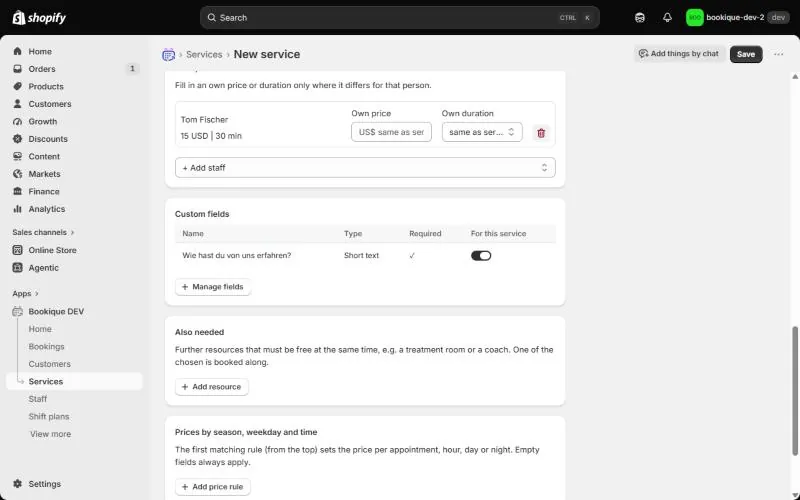
Add the staff members. Fill in Own price or Own duration only where they differ for that person. With Staff choice in the store you decide whether customers pick a person, may choose “any”, or always get the first available.
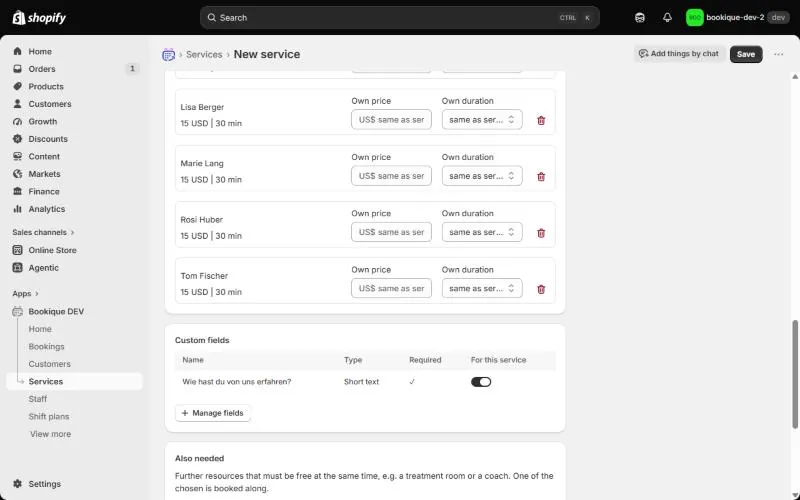
Resources and prices by season
Under Also needed you add further resources that must be free at the same time, for example a treatment room. Under Prices by season, weekday and time you add rules such as a weekend surcharge or an evening rate; the first matching rule from the top sets the price. Extras and fees add optional extras or fixed fees.
Emails and preview
On the right you choose the templates for the customer, the shop and the reminder, where the shop notice goes (shop email, the booked staff member or both), when the Reminder to the customer is sent and whether a Follow-up email goes out afterwards. After saving, Free times (next 7 days) shows exactly what the store offers right now.
Screenshots show the app in English.
Need help?
Write to support@cronema.com – we answer in English and German.