Managing bookings
Calendar and list of all bookings; create, move, cancel and complete bookings in the admin.
Bookings shows all appointments, tickets and rentals in a month, week or day calendar or as a list. Filter by Type, Service / event and Staff, search for a customer or show cancelled bookings. Open requests appear at the top.
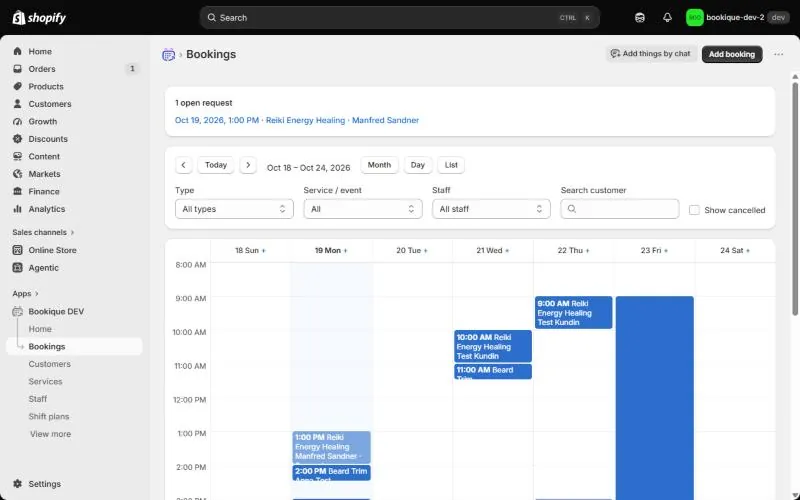
Add a booking by hand
- 1Click Add booking (or click a day in the calendar).
- 2Choose the service or event, the staff member, date and time. For classes choose the places, for rentals the dates, for events the tickets.
- 3Use Find existing customer to fill in name, email and phone, or enter a new customer.
- 4If needed, Ignore working hours allows any time; overlaps with other bookings are still not possible.
- 5Click Book. Bookique sends the confirmation if the email is filled in.
Booking details
Click a booking to see the customer, the answers to your questions, the order, the price and all emails with their status. There you can:
- Move – choose a new staff member, date and time; with Inform the customer by email the customer gets a new confirmation.
- Cancel booking, mark it as No-show or Mark as completed.
- Delete booking – only for wrong entries; the booking and its scheduled emails are removed for good.
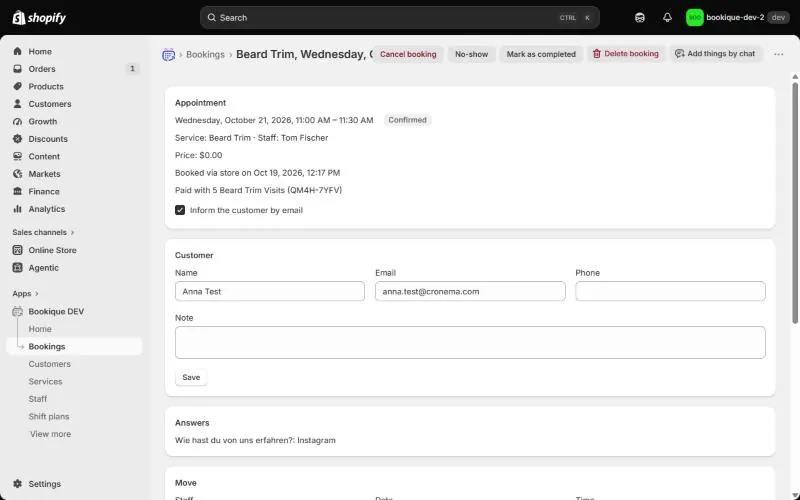
Statuses: Reserved (in the cart, not yet paid), Confirmed, Completed, Cancelled, No-show, Expired and Conflict (the order arrived after the time was taken – agree a new time with the customer).
Screenshots show the app in English.
Need help?
Write to support@cronema.com – we answer in English and German.