Booking widget in your theme
Add the booking calendar, booking buttons and event blocks to your Shopify theme and style them.
Bookique adds blocks to the Shopify theme editor (Online Store 2.0 themes). No code is needed.
Add the booking calendar to a page
- 1In Shopify open Online Store → Themes → Customize.
- 2Open the page where customers should book, for example a new page “Book”.
- 3Click Add section or Add block, choose Apps and then Appointments.
- 4Under Widget choose which widget to show (all services, or one of your custom widgets).
- 5Save. Customers can book right away.
Booking button on product pages
Switch on the app embed Bookique Functions in the theme editor under App embeds. On service products the button then reads “Book an appointment” instead of “Add to cart” and opens the calendar in a window.
All Bookique blocks
- Appointments – booking calendar for appointments, classes and rentals.
- Event Grid and Event Calendar – upcoming events as cards or as a month calendar, filterable by category.
- Single Event and Single Event — Layout 2 – one event with tickets on any page.
- Single Performer and Single Location – a performer or venue with its events.
- My bookings – the customer portal (see Customer portal).
Custom widgets
Under Widgets you create widgets that show only chosen services and staff, with their own heading, accent colour and corner radius. Choose the display: Calendar on the page (month calendar and free times right in the section) or Button that opens the calendar. The preview shows both the appointment view and the from–to view for rentals.
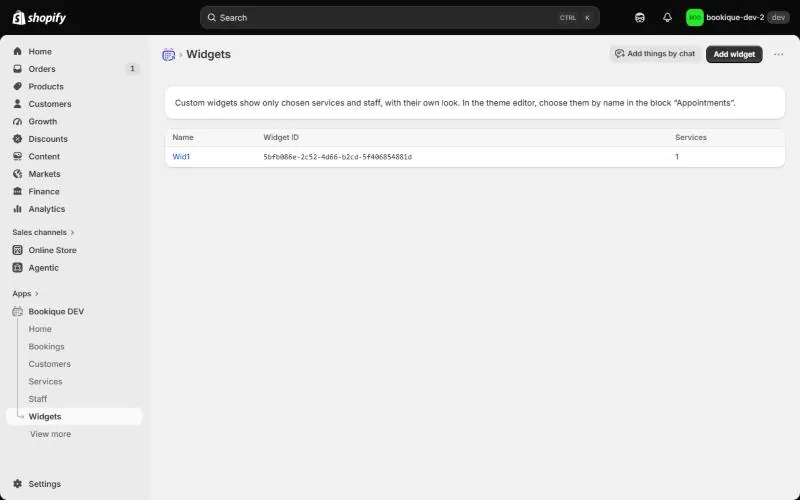
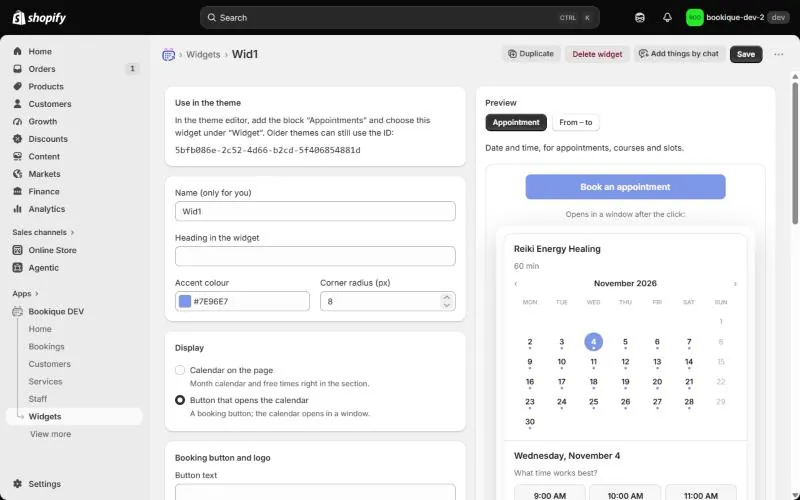
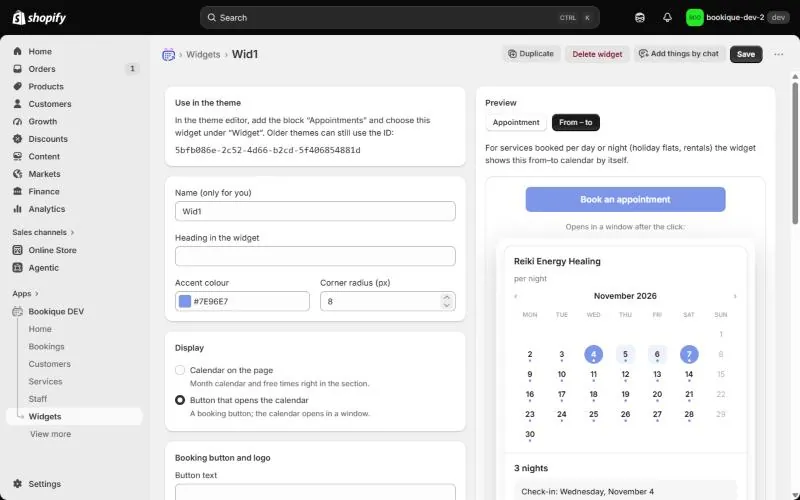
Under Products you assign the widget to product pages; there the booking button opens this widget.
Screenshots show the app in English.
Need help?
Write to support@cronema.com – we answer in English and German.